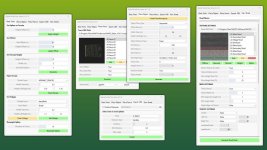
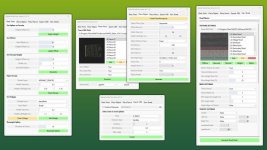
With this powerful GIANTS Editor script, the Spline Toolkit provides a wide range of useful tools for working with splines. From simple terrain editing and object or fence placement to exporting splines as .OBJ files for Blender, as well as convenient road mesh generation – all combined in a single tool.
Feature Overview:
1) Base Tools
1.1) Set Spline on Terrain
Allows spline points to be projected directly onto the terrain with an optional height offset.
1.2) Set Offset
Moves a spline by applying both vertical and horizontal offsets.
1.3) Set Terrain Height
Adjusts the terrain height to match the spline height, with optional parameters for more precise control.
1.4) Paint Terrain
Paint terrain along a spline with an easy-to-use selection of terrain layers.
1.5) Set Foliage
Places foliage along the spline.
1.6) Resample Spline
Changes the number of control points of a spline.
2) Place Objects
Allows objects to be placed along a spline with a wide range of adjustable parameters for precise placement.
3) Place Fence
Creating fences has never been easier.
With a structured list of base game fences including preview images, complete fence systems can be created efficiently with just a few clicks.
4) Export as .OBJ
To improve the workflow between GIANTS Editor and Blender, the Spline Toolkit allows splines to be exported as .OBJ files using two different methods with additional parameters.
5) Generate Street
A lightweight yet very useful tool for building infrastructure. Using a selection of base game road textures, roads can be generated quickly and easily.
For more complex intersections it is still recommended to create the infrastructure directly in Blender. However, the tool already generates correct UVs and therefore works perfectly as a preview or base for further work.
Optionally, matching traffic splines can also be generated automatically.
Installation:
1.) Navigate to the GIANTS Editor installation directory. Default: “C:/Program Files/GIANTS Software\GIANTS_Editor_10.X.X/”
2.) Copy the file “SplineToolkit.lua” and the folder “imgFence”/”imgRoads” from the prefab into the Script folder of the GIANTS Editor.
3.) The script will then be available in the GIANTS Editor via the menu bar under “Scripts.”
V1.1.1.0
– [Base Tools] = Added a Clear Foliage button and removed the option from the foliage layer list.
– [Base Tools] = Fixed an issue with Clear Foliage where an incorrect invisible layer was applied.
– [Place Object] = Added Place Type “… with Width”. Allows objects to be placed randomly within a defined width.
– [Place Object] = Added Set Height Type “… + Follow Axis”. Allows connected objects to be placed almost seamlessly, even on uneven terrain.
– [Gen. Street] = Added four additional textures to the list.
– [Gen. Street] = Added a confirmation dialog when overwriting an existing road group.
- Authors / Credits
- Aslan
- Download modification
- https://zippymods.com/3931ks7jylcw/FS25_GEScript_SplineToolkit_prefab.zip.html

 Farming Simulator 25 Mods
 FS25 Maps
 FS25 Tractors
 FS25 Harvesters
 FS25 Trucks
 FS25 Trailers
 FS25 Vehicles
 FS25 Cars
 FS25 Buildings
 FS25 Implements
 FS25 Forklifts & Excavators
 FS25 Forestry
 FS25 Decorations
 FS25 Placeable objects
 FS25 Prefab
 FS25 Packs
 FS25 Weights
 FS25 Misc
 FS25 Textures
 FS25 Savegames
 FS25 Scripts
 FS25 Autodrive