To adjust the brightness in ReShade version 1.0, you can easily do so through the preset by tweaking the settings related to brightness. In the Wachoo Preset V1.0, you can modify the brightness setting by accessing the preset settings within ReShade.
Here's a step-by-step guide on how to adjust the brightness setting in ReShade version 1.0 with the Wachoo Preset:
1. Launch your game that has ReShade installed and press the designated hotkey to open the ReShade menu (usually it's the "Home" key by default).
2. In the ReShade menu, navigate to the settings tab or the tab where you can tweak individual effects within the preset.
3. Look for the setting related to brightness or a similar term that controls the overall brightness of the image.
4. Adjust the brightness setting to your desired value. In this case, you mentioned a brightness of 0.7, so you can input that value or use the slider to achieve the desired brightness level.
5. Once you've adjusted the brightness setting, confirm or apply the changes, and close the ReShade menu.
By following these steps, you should be able to set the brightness level in the Wachoo Preset V1.0 to 0.7 or to your preferred intensity. Remember that tweaking the brightness setting can significantly impact the visual appearance of the game, so feel free to experiment with different values to find the optimal brightness level for your gameplay experience.


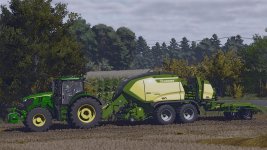


 Farming Simulator 25 Mods
 FS25 Maps
 FS25 Tractors
 FS25 Harvesters
 FS25 Trucks
 FS25 Trailers
 FS25 Vehicles
 FS25 Cars
 FS25 Buildings
 FS25 Implements
 FS25 Forklifts & Excavators
 FS25 Forestry
 FS25 Decorations
 FS25 Placeable objects
 FS25 Prefab
 FS25 Packs
 FS25 Weights
 FS25 Misc
 FS25 Textures
 FS25 Savegames
 FS25 Scripts
 FS25 Autodrive