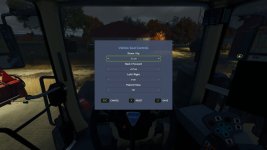
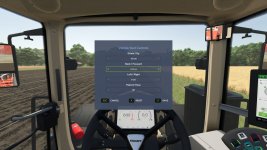
In FS25, you can easily adjust the indoor (cab) camera position and field of view of your vehicles using the Vehicle Seat Controls feature. Here's a step-by-step guide on how to do this:
1. Sit in the vehicle you want to adjust the camera settings for.
2. Press the Numpad - key (this key can be rebound in Settings > Controls) to open the Vehicle Seat Controls window.
3. In the window, use the arrow selectors to adjust the following settings:
- Up / Down: Adjust the vertical position of the camera.
- Forward / Back: Adjust the horizontal position of the camera.
- Left / Right: Adjust the lateral position of the camera.
- Field of View (zoom): Zoom in or out to change the field of view.
4. As you make adjustments, you will see live previews of the changes in the cab.
5. Once you are satisfied with the camera position and field of view, you can click Save to keep the changes.
6. If you want to reset the camera position back to its default, you can click Reset.
7. If you decide not to apply the changes, you can click Cancel to discard them.
Additionally, if you want to look around while adjusting the camera settings, you can click and hold the left mouse button anywhere outside the Vehicle Seat Controls window and drag to freely glance around the cab. This allows you to line up the perfect view before saving your changes.
It's worth noting that the settings you make are saved per player and per vehicle. These settings persist across leaving/rejoining the game and even server restarts, ensuring that your preferred camera adjustments remain in place.
By following these steps, you can easily customize the indoor camera position and field of view of your vehicles in FS25 to enhance your gameplay experience.


 Farming Simulator 25 Mods
 FS25 Maps
 FS25 Tractors
 FS25 Harvesters
 FS25 Trucks
 FS25 Trailers
 FS25 Vehicles
 FS25 Cars
 FS25 Buildings
 FS25 Implements
 FS25 Forklifts & Excavators
 FS25 Forestry
 FS25 Decorations
 FS25 Placeable objects
 FS25 Prefab
 FS25 Packs
 FS25 Weights
 FS25 Misc
 FS25 Textures
 FS25 Savegames
 FS25 Scripts
 FS25 Autodrive